


Sending a crucial document to your printer and receiving nothing in return is the most annoying thing there is. Even though the printer is powered on, linked to your computer, and has enough paper and ink, it might not print. If you’re wondering why your printer isn’t printing, there could be a much easier solution than you might think. A bad connection, a stuck print job, an offline setting, a paper jam, or a problem with the ink or toner can all cause printers to malfunction. In certain situations, your computer might not be properly communicating with the printer, even though the printer itself might be fine. Wireless printers that abruptly lose network connectivity are particularly prone to this. There are a few things you can do on your own before assuming that your printer is broken. Instead of attempting haphazard fixes, you can find the correct solution by understanding why your printer won’t print. Fortunately, a lot of typical printer issues can be fixed in a matter of minutes. We’ll go over the most typical causes of a printer not printing in this guide, along with step-by-step instructions for what to look for. These troubleshooting steps can help you get your printer working again, whether it’s connected but not printing, refusing to print anything, or just not responding to your computer.
Why Is My Printer Not Printing?
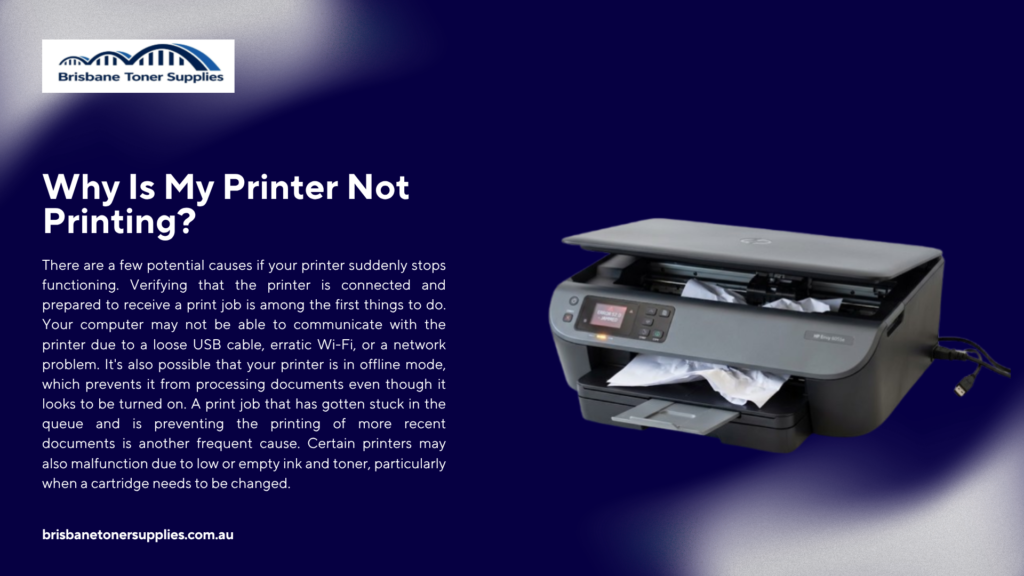
There are a few potential causes if your printer suddenly stops functioning. Verifying that the printer is connected and prepared to receive a print job is among the first things to do. Your computer may not be able to communicate with the printer due to a loose USB cable, erratic Wi-Fi, or a network problem. It’s also possible that your printer is in offline mode, which prevents it from processing documents even though it looks to be turned on. A print job that has gotten stuck in the queue and is preventing the printing of more recent documents is another frequent cause. Certain printers may also malfunction due to low or empty ink and toner, particularly when a cartridge needs to be changed. Other minor issues that are easily overlooked include paper jams and improperly loaded paper. Your computer may occasionally select the incorrect printer, especially if you have previously used several printers. Communication issues between your computer and the printer can also be caused by out-of-date, missing, or corrupted printer drivers. If you’re wondering why your printer isn’t printing, you can usually identify the issue without the need for expert help by first looking at these fundamental causes. Instead of altering multiple settings at once, it’s important to consider each possibility one at a time. You can proceed to the proper solution and restore your printer’s functionality once you have determined what is causing the problem.
How to Fix a Printer That Won't Print
Before adjusting more complex settings when your printer isn’t printing, start with the basics. First, confirm that the printer is turned on and connected to your computer or Wi-Fi network correctly. Check the printer’s display or indicator lights for any error messages. If the printer appears to be operating normally, turn it off, wait a short while, and then turn it back on to resolve any brief issues. Next, make sure the paper is properly loaded into the paper tray without being overfilled. Check for any paper jams inside the printer, including tiny, hard-to-see pieces of torn paper. Additionally, make sure the cartridges are installed correctly and check the levels of ink or toner. Verify that your computer is sending the document to the right printer if the printer has enough ink or toner but still refuses to print. Clearing the print queue may resolve a stuck print job, which can also stop new documents from printing. Verify that the printer and computer are linked to the same Wi-Fi network if the printer is wireless. Restarting your computer can occasionally re-establish the connection between the two devices if your printer is still not printing. After every step, try printing a brief test document to determine the true cause of the issue. These simple fixes are frequently sufficient to restore a printer’s functionality without the need for expert assistance.
Printer Connected but Not Printing? Here's What to Check
The connection between the printer and your device may be the issue if your printer appears to be connected but still refuses to print. If you’re using a wireless connection, start by making sure the computer and printer are linked to the same Wi-Fi network. Make sure the cable for a USB printer is securely inserted into the computer and the printer. Additionally, you should check the printer’s settings or display to see if an error or offline status is displayed. Your computer may occasionally show a printer as connected even though it has momentarily lost contact with the device. This connection can be restored by restarting the computer and printer. Before sending a document, it’s important to make sure you’ve chosen the right printer, particularly if your computer has multiple printers saved. Even when everything else is operating normally, the printer may appear unresponsive due to a print job that is stuck in the queue. Try deleting the outstanding print jobs and sending a fresh test document if your printer is connected but not printing. If your wireless printer is having problems connecting to the network, restarting your router might also be helpful. Make sure your computer recognises the printer correctly, and check its driver if it still doesn’t respond. You can typically determine whether the problem is with the printer, the connection, or the settings on your computer by going through each of these checks one at a time.
Why Is My Printer Not Printing From My Computer?
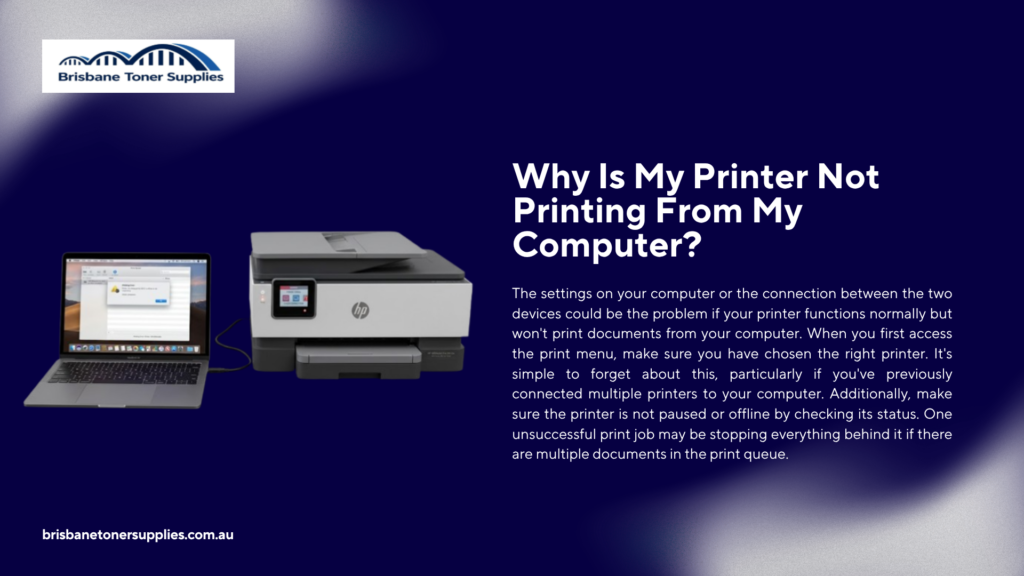
The settings on your computer or the connection between the two devices could be the problem if your printer functions normally but won’t print documents from your computer. When you first access the print menu, make sure you have chosen the right printer. It’s simple to forget about this, particularly if you’ve previously connected multiple printers to your computer. Additionally, make sure the printer is not paused or offline by checking its status. One unsuccessful print job may be stopping everything behind it if there are multiple documents in the print queue. This issue can frequently be fixed by clearing the queue and resending the document. Restarting your printer and computer is also a smart idea to update their connection. If the problem of your printer not printing from your computer persists, make sure the printer driver is installed and operational. Your computer may not be able to properly communicate with the printer due to an out-of-date or corrupted driver. Before attempting again, make sure your printer and computer are linked to the same network for wireless printers. To find out if the issue is specific to one file, you can also test a different document or program. The original program or document may be the source of the problem rather than the printer itself if the printer is compatible with another application. These straightforward tests can help identify the issue and restore your printer’s compatibility with your computer.
What If the Printer Is Not Printing Anything?
Start by determining whether your printer is truly prepared to receive a print job if it is not printing anything at all. Verify that the printer is powered on, connected correctly, and does not display an error message. Look inside the printer and inspect the paper tray for any paper jams that might be impeding its operation. Even if there isn’t a clear warning on the printer, you should still check the ink or toner. Try restarting the printer and your computer to re-establish their connection if everything looks normal. Verify that both wireless printers are linked to the same Wi-Fi network. Check your computer’s print queue for any documents that might be paused or stuck if your printer is still not printing anything. If your model allows it, you can also try printing a test page straight from the printer’s settings. If the test page prints successfully, your computer, document, or printer settings are probably the cause of the issue. If the test page fails as well, though, there might be a problem with the printer itself, its toner or ink, or another internal part. Before assuming the printer requires expert repair, try examining the printer’s driver and using any available maintenance or diagnostic tools. You can determine whether the issue is something you can resolve on your own or something that needs more care by completing these fundamental checks.
What Are the Common Causes of a Printer Not Working?
There are a number of reasons why a printer might malfunction, and the issue isn’t always as bad as it first appears. One of the most frequent reasons is a bad USB or Wi-Fi connection, particularly if the printer abruptly stops working. Additionally, the printer might be in offline mode, which stops it from accepting new print jobs. A printer may also malfunction due to paper jams, an empty paper tray, or improperly loaded paper. Certain printers may not print as intended due to low or empty ink or toner. The printing of other documents may also be prevented by a print job that is stuck in the queue. Another straightforward problem that can go unnoticed is choosing the incorrect printer on your computer. Your computer may not be able to properly communicate with the printer due to outdated or corrupted printer drivers. If you’re wondering why your printer isn’t printing, you can identify the issue by looking at each of these typical causes one at a time. Instead of attempting haphazard troubleshooting techniques, you can apply the appropriate fix once you understand what’s causing the problem.
When Should You Contact a Printer Repair Professional?
Sometimes a printer issue is more complicated than what can be safely resolved at home. It might be time to have your printer checked by a professional if you’ve tried basic troubleshooting and it still won’t print. An internal issue may be indicated by persistent error messages that don’t go away after restarting the printer. If the printer makes strange clicking, buzzing, or grinding noises while in use, you should also think about getting expert assistance. Frequent paper jams could be a sign of an issue with the rollers or another internal part, particularly if there isn’t any visible paper stuck inside. Another excellent reason to seek help is physical damage, such as a broken cover, cracked tray, or damaged internal components. Avoid trying to use the printer repeatedly until the problem is fixed if it abruptly stops turning on or keeps shutting down. Without the right tools, diagnosing hardware issues with the printhead, power supply, or internal mechanisms can be challenging. Before paying for a repair, see the manufacturer’s support options if your printer is still covered under warranty. Before choosing an older printer, weigh the cost of repairs against the cost of a replacement. You can find the most workable solution, save time, and stop additional damage by knowing when to stop troubleshooting.
Final Thoughts
It can be annoying when a printer won’t print, but you can usually solve the issue without having to buy a new printer. Check the printer’s power, paper, ink or toner, and connection first. Check to see if the printer is offline or if a print job is stuck in the queue, and whether those are operating as intended. Verify that the document is being sent to the appropriate printer by your computer. If a wireless printer abruptly stops working, it may be helpful to check the Wi-Fi connection. Another easy way to resolve transient connection or software problems is to restart the computer and printer. Checking the printer driver and executing a test page could help identify the issue if you’re still unsure how to fix a printer that isn’t printing. You can learn more about what needs to be fixed by paying attention to error messages. Contacting a repair specialist might be the better course of action if standard troubleshooting fails and the printer exhibits indications of a hardware issue. You can frequently restore your printer to normal without needless repairs or costs by taking a few minutes to address these common causes.