


Although dust, dirt, and dried ink can accumulate over time, a printer may not seem like a device that requires routine cleaning. When this occurs, your prints may have streaks, faded colours, fuzzy text, or missing portions. Paper feeding issues or frequent paper jams can also be brought on by dirty rollers. These problems can be annoying, particularly if you need to print something crucial. The good news is that with appropriate cleaning and routine maintenance, many common printer issues can be avoided. Maintaining clear prints and a functional printer can be achieved by knowing how to clean a printer. Depending on whether you use an inkjet or laser printer, the cleaning procedure might be different. Additionally, some printers have built-in cleaning features that can assist with clogged print heads and nozzles. We’ll walk you through basic procedures for safely cleaning your printer’s rollers, nozzles, and print heads in this guide. We’ll also go over how to clean various printer types and what to do if your printer clogs.
Why Should You Clean Your Printer?
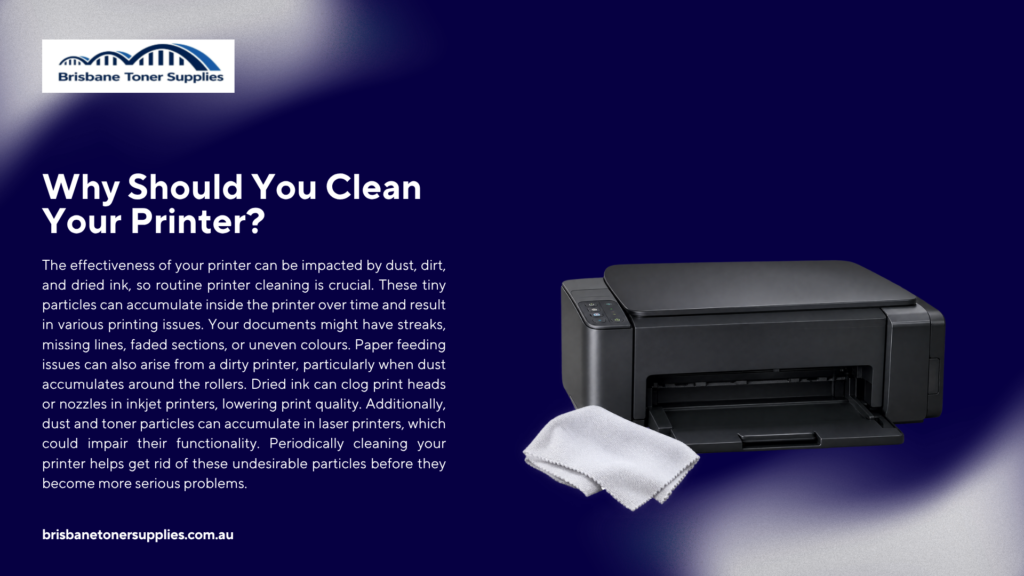
The effectiveness of your printer can be impacted by dust, dirt, and dried ink, so routine printer cleaning is crucial. These tiny particles can accumulate inside the printer over time and result in various printing issues. Your documents might have streaks, missing lines, faded sections, or uneven colours. Paper feeding issues can also arise from a dirty printer, particularly when dust accumulates around the rollers. Dried ink can clog print heads or nozzles in inkjet printers, lowering print quality. Additionally, dust and toner particles can accumulate in laser printers, which could impair their functionality. Periodically cleaning your printer helps get rid of these undesirable particles before they become more serious problems. Additionally, it can improve the efficiency of your printer and lessen the frequency of troubleshooting. It’s not necessary to thoroughly clean your printer every day, but it’s a good idea to check and clean it whenever you see an issue. Maintaining your printer on a regular basis can also help it last longer. It is simpler to address these issues early if you are aware of the typical indicators that your printer needs cleaning.
How to Clean a Printer Step by Step
You can typically do simple printer cleaning at home, so it doesn’t have to be difficult. To prevent mishaps, unplug the printer from the power source and turn it off before you begin. Take out any paper from the tray and remove any parts that are easily detachable according to the printer’s manual. To remove dust and grime from the printer’s exterior, use a gentle, lint-free cloth. Gently clean any accessible areas of the interior that may have accumulated dust, paper fibres, or dried ink. Because moisture can harm the printer, exercise caution when near delicate components and refrain from using excessive amounts of liquid. If your printer’s design permits it, turn the rollers by hand while gently wiping them if they are dirty. To help clear the print head or nozzles on inkjet printers, you can also use the printer’s built-in cleaning feature. Before reconnecting the printer after cleaning, let any slightly damp areas completely dry. To see if the print quality has improved, turn the printer back on and print a test page. By following these easy steps on a regular basis, you can keep your printer clean, minimise common printing issues, and extend its useful life.
How to Clean Printer Rollers, Nozzles, and Print Heads
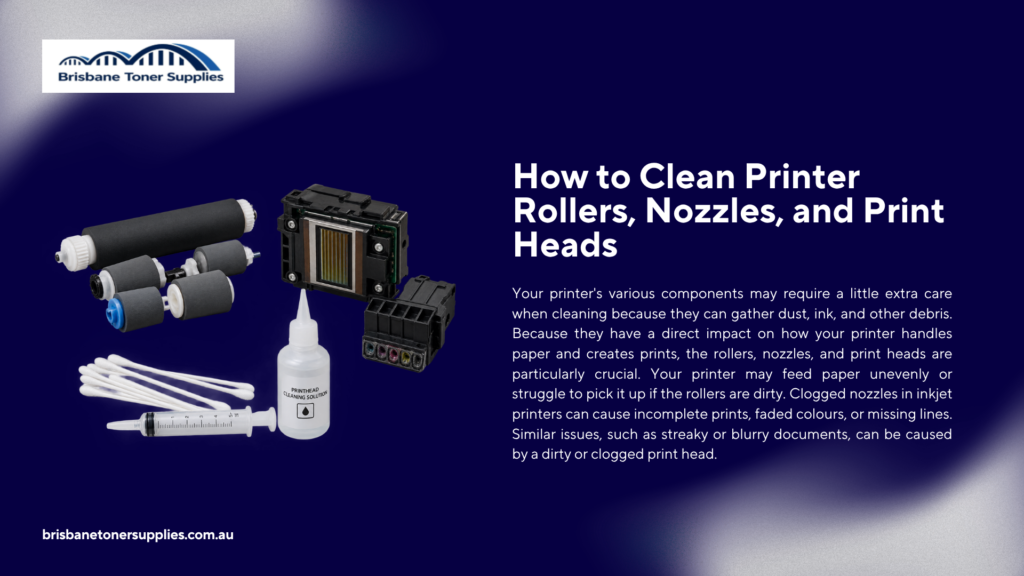
Your printer’s various components may require a little extra care when cleaning because they can gather dust, ink, and other debris. Because they have a direct impact on how your printer handles paper and creates prints, the rollers, nozzles, and print heads are particularly crucial. Your printer may feed paper unevenly or struggle to pick it up if the rollers are dirty. Clogged nozzles in inkjet printers can cause incomplete prints, faded colours, or missing lines. Similar issues, such as streaky or blurry documents, can be caused by a dirty or clogged print head. Fortunately, these components can typically be cleaned without disassembling the printer as a whole. To find out if the manufacturer has particular cleaning guidelines for these parts, start by consulting your printer’s handbook. Gently remove any visible dust or residue from the rollers using a soft, lint-free cloth. Use the printer’s built-in cleaning or maintenance feature first when cleaning nozzles or print heads, particularly if dried ink is the root of the problem. Avoid using too much liquid or directly touching delicate areas, as these actions can result in damage. You might need to repeat the cleaning cycle or see if the ink cartridges need to be changed if the issue persists after cleaning. Maintaining improved print quality and preventing minor issues from becoming more serious can be achieved by routinely cleaning these components.
How to Clean an Inkjet vs. Laser Printer
Whether your printer is an inkjet or laser model will determine how you clean it. Although they are both capable of gathering dust and debris, their internal components require different cleaning techniques. Dried ink, clogged nozzles, and dirty print heads are common issues with inkjet printers. Before performing any manual cleaning, you can typically begin with the integrated print head or nozzle cleaning feature for these printers. After that, you can use a soft, lint-free cloth to gently clean rollers and accessible areas. However, because laser printers use toner rather than liquid ink, you must be more cautious when cleaning the interior of the device. Unless the manufacturer specifically advises it, you should not blow toner particles around with compressed air because they are easily dispersed. When cleaning a laser printer, stay away from delicate parts and concentrate on getting rid of loose dust and toner from easily accessible areas. Prior to opening the printer for manual cleaning, always turn it off and unplug it. The location and handling of internal components can differ between models, so if your printer has specific cleaning instructions, refer to the manufacturer’s guide. You can keep your printer in good operating order and prevent damage by understanding the differences between cleaning an inkjet printer and a laser printer.
How to Clean a Clogged Printer
It can be annoying to have a clogged printer, particularly if it functions but produces pages with missing lines, faded areas, or uneven colours. Dried ink, clogged nozzles, or a print head that hasn’t been used in a while are common causes of clogs. Check to see if your printer has an integrated cleaning or maintenance feature before doing any manual cleaning. Minor clogs can frequently be removed without opening the printer by running a print head or nozzle cleaning cycle. If the issue persists, you can use the appropriate materials to gently clean the printer’s accessible parts. Dried ink can accumulate in the print head and nozzles of inkjet printers, so keep a close eye on them. Sensitive components should not be forced, scraped, or touched, as this could result in irreversible damage. Additionally, make sure the ink cartridges are adequately filled and correctly installed. Give the printer some time before performing another cleaning cycle if, despite multiple cleaning attempts, it continues to produce low-quality prints. It is preferable to adhere to the manufacturer’s suggested cleaning procedure because repeated cleaning cycles can use a discernible amount of ink. The printer might require a deeper cleaning or expert service if the clog persists after routine maintenance.
Final Thoughts
One easy maintenance step that can significantly improve print quality is keeping your printer clean. If left unchecked, dust, dirt, dried ink, and toner can accumulate over time and cause issues. Regular printer cleaning can help avoid problems like streaky prints, clogged nozzles, issues with paper feeding, and needless paper jams. Although you don’t have to clean every component of the printer every day, periodically inspecting it can help you identify issues early. Always adhere to the cleaning guidelines supplied by the manufacturer of your printer, particularly when handling delicate internal parts. If your printer has a built-in cleaning feature, use it when necessary rather than attempting to clean delicate parts by hand right away. Professional repair might be a better choice for obstinate clogs or issues that persist after cleaning. When not in use, it’s also a good idea to keep your printer dry and clean and shield it from excessive dust. Your printer can continue to produce dependable, clean prints for a longer period of time with the right care and routine maintenance. Whenever you need to print, knowing how to properly clean your printer can help you save time, minimise common printing issues, and achieve better results.