


Printers are useful for printing documents, school assignments, business reports, and photos. However, they can sometimes experience problems that interrupt your work. Common issues include printers that refuse to print, paper jams, blank pages, faded text, and Wi-Fi connection errors. These problems can be frustrating, especially when you need important documents quickly. Fortunately, understanding how printers work and what causes these issues can make troubleshooting easier. Some printing problems may be related to incorrect settings, connection errors, paper handling, or printer maintenance. Others may develop over time due to regular use, dust buildup, or worn components. Knowing the possible causes of printer problems is important before attempting any fixes. It can help you avoid unnecessary adjustments and understand which parts of the printer may be affected. Different problems also require different troubleshooting approaches, so identifying the symptoms is a useful first step. Whether you use an inkjet or laser printer at home, school, or work, knowing what to look for can help you handle unexpected printing interruptions. This guide covers common printer problems, their possible causes, and the troubleshooting steps you can follow to address them.
Why Is My Printer Not Printing?

A printer that does not print may have connection problems, incorrect settings, or documents stuck in the print queue. First, check whether the printer is turned on and connected properly to your computer or network. Make sure you have selected the correct printer before sending your document. If the printer is connected but does not respond, open the print queue and cancel any stuck jobs. Restarting the printer and computer may also resolve temporary errors. Check the printer display for warnings about paper, ink, or toner. If the printer shows no errors, try printing a test page to check whether it can produce a document. For USB printers, make sure the cable is securely attached to both devices. For wireless models, confirm that the printer is connected to the correct network. If the problem continues, check for compatible driver updates on the manufacturer’s official website. You should also check whether the printer is set to Offline or Pause Printing, as these settings can prevent documents from being printed. Make sure there is enough free space on your computer and that the document you are printing is not damaged. You can also try printing a different file to determine whether the issue comes from the printer or the document itself. These simple checks can often restore normal printing without requiring repairs
Why Is My Printer Printing Blank or Faded Pages?
Blank or faded pages may result from low ink or toner, clogged printhead nozzles, or incorrectly installed cartridges. For inkjet printers, dried ink can block the nozzles, especially when the printer has not been used for a long time. Laser printers may produce faint text when toner levels are low or the cartridge has a problem. Start by checking the ink or toner levels and making sure the cartridges are installed correctly. If you recently installed a new cartridge, confirm that all required protective materials have been removed. For inkjet printers, run a nozzle check to identify missing lines or colours. Use the built-in printhead cleaning function if the results show clogged nozzles. Avoid running cleaning cycles repeatedly because they consume ink. You should also check your print quality settings because draft mode can produce lighter output. Print a test page to see whether the problem has improved. Another possible cause is using the wrong paper type or incorrect print settings. Make sure the selected paper type matches the paper loaded in the printer, as this can affect ink distribution and print quality. For laser printers, gently follow the manufacturer’s instructions for handling or redistributing toner if uneven printing occurs. Regular printer use and proper maintenance can also help prevent dried ink and other print quality issues. If the problem continues after these steps, the printer may need professional cleaning or servicing.
How Do I Fix a Printer That Keeps Jamming Paper?
Paper jams happen when sheets become stuck inside the printer or cannot move through the paper path properly. Common causes include incorrectly loaded paper, overloaded trays, damaged sheets, and unsuitable paper sizes. Dust or worn feed rollers can also cause repeated jams. To fix the problem, turn off the printer and follow the manufacturer’s instructions for opening the appropriate covers. If you use a laser printer, allow hot internal components to cool before touching the paper path. Carefully remove the jammed paper in the recommended direction to avoid tearing it. Check the accessible paper path for small scraps that may remain inside. Avoid using sharp tools or forcing paper out because this may damage internal components. Reload the paper neatly and adjust the guides so they fit the sheets without pressing too tightly. Make sure the tray is not overloaded and that the paper matches the printer’s supported sizes and types. If jams continue, the feed rollers or other internal components may need professional attention. Store unused paper in a dry place to prevent moisture from affecting its condition. Before loading new sheets, check for curled edges, wrinkles, or pages sticking together. Cleaning the paper feed rollers according to the manufacturer’s instructions may also help improve paper movement and prevent recurring jams.
Why Is My Printer Not Connecting to Wi-Fi?
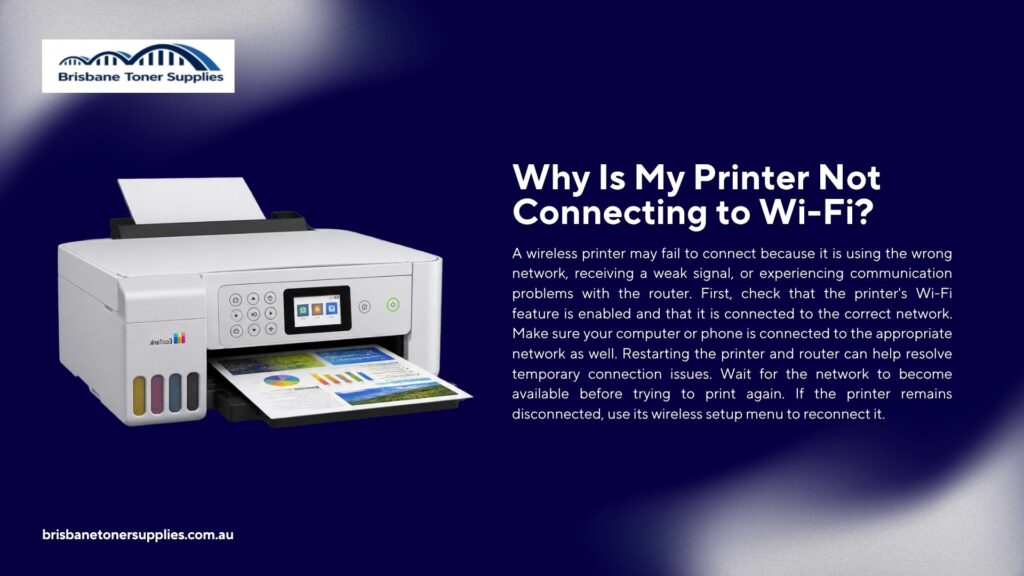
A wireless printer may fail to connect because it is using the wrong network, receiving a weak signal, or experiencing communication problems with the router. First, check that the printer’s Wi-Fi feature is enabled and that it is connected to the correct network. Make sure your computer or phone is connected to the appropriate network as well. Restarting the printer and router can help resolve temporary connection issues. Wait for the network to become available before trying to print again. If the printer remains disconnected, use its wireless setup menu to reconnect it. Check whether your printer supports the Wi-Fi band and security settings used by your router. You should also confirm that the printer appears correctly in your computer’s settings. If the printer shows as offline, check its connection before changing other settings. Avoid resetting all network settings unless necessary because you may need to set up the connection again. If the problem continues, consult the manufacturer’s support website for model-specific instructions and compatible drivers. Keep the printer within a reasonable distance of the router to maintain a stable wireless signal. If you recently changed your Wi-Fi password or router, update the saved network details on the printer. Once the connection is restored, print a test page to confirm that the printer can communicate with your device properly.
Why Is My Printer Producing Incorrect Colours?
Incorrect colours can make printed photos and documents look different from what appears on your screen. This problem may occur when ink cartridges are running low, printhead nozzles are clogged, or colour settings are incorrect. The paper type and printer quality settings can also affect the final result. Start by checking the ink levels and confirming that all cartridges are installed correctly. For inkjet printers, print a nozzle-check pattern to identify missing colours. Run a cleaning cycle if the pattern shows clogged nozzles, following the manufacturer’s instructions. Next, check that the printer is not set to grayscale or black-and-white mode. Select the correct paper type in the print settings to help improve colour output. You should also review the print quality settings to ensure they match your needs. Print a test image to see whether the colours look better. Keep in mind that your monitor and printer may display colours differently. If the issue continues, check the manufacturer’s colour management instructions or contact a technician.
How Can I Prevent Common Printer Problems?
Regular maintenance can help prevent many printing issues and keep your printer working properly. Use paper that matches your printer’s supported sizes and types, and store it in a dry place to prevent feeding problems. Avoid overfilling the paper tray and make sure the sheets are loaded correctly. Check ink or toner levels regularly so you can replace empty cartridges before they interrupt your work. Make sure replacement cartridges are compatible with your printer model. Keep the printer clean by following the manufacturer’s instructions, and remove paper scraps from accessible areas when necessary. For inkjet printers, use the recommended maintenance functions when print quality declines. Avoid running printhead cleaning cycles unnecessarily because they consume ink. You should also keep printer drivers updated using the manufacturer’s official website. Check the printer manual for recommended maintenance schedules and cleaning procedures. If you notice repeated jams, unusual noises, or persistent errors, seek professional help rather than attempting repairs that could damage the machine. These simple habits can reduce avoidable problems and help extend your printer’s useful life.
Final Thoughts
Common printer problems, such as printing errors, blank pages, paper jams, Wi-Fi issues, and incorrect colours, can often be resolved with simple troubleshooting. Checking the printer’s connections, paper supply, ink or toner levels, and settings is a good place to start. If the printer does not respond, check the print queue and restart the device. For blank or faded pages, inspect the cartridges and use the appropriate maintenance functions. If paper keeps jamming, remove the obstruction carefully and make sure the paper is loaded correctly. For wireless connection issues, confirm that the printer and computer are connected to the correct network. You should also keep printer drivers updated to avoid software compatibility problems. Always follow the manufacturer’s instructions when handling cartridges or cleaning internal components. Regular maintenance and the correct printing supplies can help prevent recurring issues. If basic troubleshooting does not work, consult the printer manual or contact a qualified technician. By understanding these common printer problems and solutions, you can save time, reduce unnecessary expenses, and keep your printer ready for everyday use.