


Getting clear, sharp prints is important whether you’re printing documents for work, school, or personal use. However, your printer may sometimes produce blurry text, faded colours, streaks, or images that look different from what you see on your screen. These issues can be frustrating, especially when you need professional-looking results. Fortunately, you don’t always need to replace your printer to solve them. In many cases, a few simple adjustments can make a noticeable difference. If you want to know how to improve print quality, start by checking your printer settings, ink or toner levels, and paper type. The resolution of your images can also affect how sharp they look on paper. For inkjet printers, clogged printheads may cause missing lines or uneven colours. Meanwhile, laser printers can experience print quality problems related to toner cartridges or internal components. Choosing the right print settings for each job can help you achieve better results. Regular maintenance can also prevent common printing issues from getting worse. This guide covers practical ways to improve print quality, fix blurry or faded prints, and get clearer results from your printer.
What Causes Poor Print Quality?
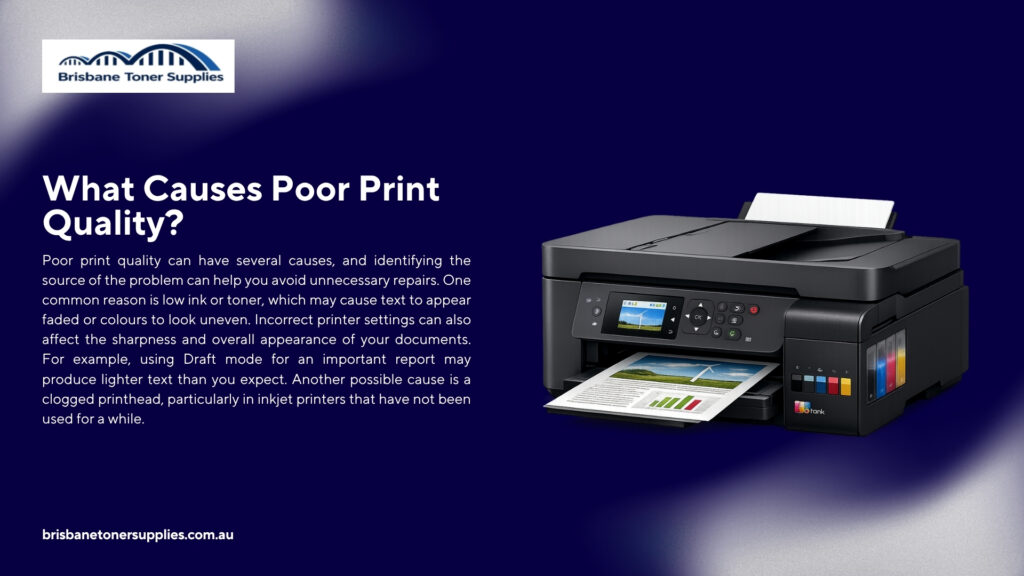
Poor print quality can have several causes, and identifying the source of the problem can help you avoid unnecessary repairs. One common reason is low ink or toner, which may cause text to appear faded or colours to look uneven. Incorrect printer settings can also affect the sharpness and overall appearance of your documents. For example, using Draft mode for an important report may produce lighter text than you expect. Another possible cause is a clogged printhead, particularly in inkjet printers that have not been used for a while. Dirty printer components or worn parts can also affect the final output. Paper quality matters because different types of paper absorb ink differently and are designed for different printing purposes. Images with low resolution may appear pixelated when enlarged or printed at a larger size. An outdated or incorrect printer driver can sometimes limit available settings or cause printing issues. In some cases, the problem may involve more than one of these factors. Checking the printed page carefully can help you narrow down the cause before trying a solution. Once you understand what is affecting the output, you can choose the most suitable troubleshooting step.
How to Improve Print Quality the 8 Practical Solutions
Improving print quality usually starts with checking the settings and supplies you already have. Before buying replacement parts or considering a new printer, review the options available on your device. Start by selecting an appropriate print quality mode for the document or image you want to produce. Next, check whether your ink or toner cartridges have enough supplies and are installed correctly. If you use an inkjet printer, a nozzle check can help identify blocked nozzles that may cause gaps or uneven colours. Cleaning the printhead may help when the test results show missing lines, but follow the manufacturer’s instructions and avoid unnecessary cleaning cycles. You should also make sure the paper loaded in the tray matches the type selected in your printer settings. When printing photos, use a high-resolution image to preserve detail and reduce pixelation. Keeping your printer driver updated can help maintain compatibility with your computer and operating system. If text or lines appear misaligned, the printer’s alignment function may help correct the problem. Remember that not every printer uses the same menu options, so the exact steps may vary by model. Try one adjustment at a time and print a test page to see whether the change improves the result.
How to Fix Common Print Quality Problems
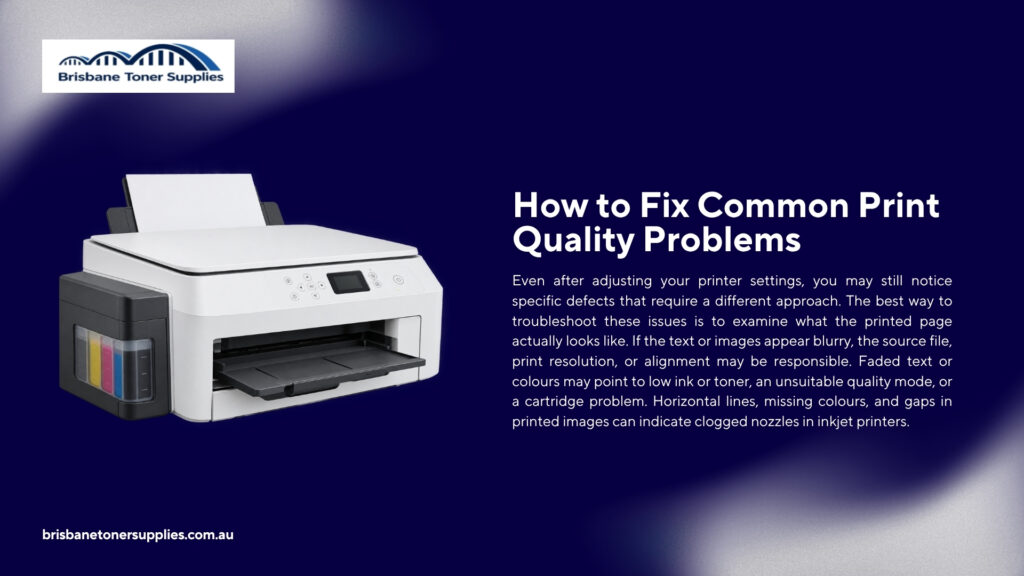
Even after adjusting your printer settings, you may still notice specific defects that require a different approach. The best way to troubleshoot these issues is to examine what the printed page actually looks like. If the text or images appear blurry, the source file, print resolution, or alignment may be responsible. Faded text or colours may point to low ink or toner, an unsuitable quality mode, or a cartridge problem. Horizontal lines, missing colours, and gaps in printed images can indicate clogged nozzles in inkjet printers. Laser printers may develop streaks or uneven output because of toner-related problems or worn components. If the issue appears only on photographs, check the image resolution and whether the selected paper type matches the paper you are using. Printing a test page can help you determine whether the problem affects the entire page or only certain elements. Avoid changing multiple settings at once because doing so makes it harder to identify the cause. Instead, choose a solution based on the defect you can see. Follow your printer manufacturer’s instructions when cleaning components or checking cartridges. If the problem continues after basic troubleshooting, the device may need professional servicing.
When Should You Replace Your Ink or Toner Cartridge?
Sometimes, poor print quality can be a sign that your ink or toner cartridge needs replacing. If your documents still look faded after checking the printer settings, start by checking the remaining ink or toner levels. Low supplies can cause light text, uneven colours, or missing parts of printed images. However, these problems do not always mean the cartridge is empty. Make sure the cartridge is installed correctly and check for any visible damage. If you use an inkjet printer, dried ink may also affect the print quality, especially if the printer has not been used for a long time. For laser printers, uneven toner distribution or a damaged cartridge may cause streaks and faded areas. Follow your printer manufacturer’s instructions when checking or replacing cartridges. When buying a replacement, choose one that is compatible with your printer model. After installing the new cartridge, print a test page to check whether the output has improved. If the problem continues, the cause may be related to other printer components rather than the cartridge itself. Replacing cartridges only when needed can help you maintain good print quality without spending money unnecessarily.
Final Thoughts
Keeping your printer in good condition can help you avoid many common printing problems. Make it a habit to check the selected settings before printing important documents or images. Store paper in a dry place and use a type that is compatible with your printer. Check ink or toner levels regularly so you can address supply issues before they affect your work. If you use an inkjet printer, follow the manufacturer’s guidance on printhead cleaning and avoid running cleaning cycles without a reason. For laser printers, use the recommended toner supplies and follow the instructions for routine maintenance. Keep your printer driver updated when necessary, particularly after major operating system updates. When you notice a problem, examine the printed page and identify the defect before making adjustments. A test page can help you check whether your changes have improved the result. If the same issue continues, consult the printer manual or contact the manufacturer’s support team. You do not need to use the highest print quality setting for every job, so choose a mode that suits your needs. With suitable settings, compatible supplies, and regular care, you can maintain clearer and more consistent prints.